


Your heart drops. You reach for your phone and…nothing. No vibration, no screen, no battery. Losing a phone is stressful enough, but losing one with a dead battery feels like a one-way ticket. Well, relax. While you can’t magically track a phone that’s completely out of power in real time, there are reliable ways to narrow down its location and, in many cases, get it back.
In this review, we will walk you through how to find a dead phone, step by step, for both iPhone and Android. You’ll learn what works and what doesn’t, and how tools like GEOfinder can help once someone has found and powered your phone back on.
Can You Find a Phone That Is Dead?
Or can someone track your phone if it is turned off? Yes, but with limitations. A “dead phone” can mean different things. It might be powered off because the battery reached zero, was turned off manually, or is offline with no signal. The distinction matters because tracking relies on data sent before the phone loses power or connection. You can’t see a dead phone moving on a map. But you can see where it was right before the battery died, and that’s usually enough to find it. Success depends heavily on what was set up before the phone died and how quickly you act. So, how to find a lost phone that is dead?
How Phone Tracking Works When Battery Dies
When your phone is turned on, it continuously saves location data in the background. It does this using a mix of GPS, WiFi networks, and mobile data towers. These signals help your phone determine its location and send that information to your account, such as your Apple ID or Google account.
What happens when your battery dies? How to track a phone location? When the battery runs out, the phone can no longer send updates. That’s why you can’t see its live location once it’s dead. However, the last recorded location before shutdown is still available online. It is what you see when you open Find My iPhone or Google Find My Device.
GPS is usually more accurate outdoors, while WiFi and mobile networks work better indoors or in cities. That’s why the last known location may not be exact, but it’s often close enough to guide your search.
Some newer phones support limited offline finding. It means they can briefly send a secure signal to nearby devices even after powering off, which is then shared through the cloud.
In simple terms, methods for how to find a dead phone work because they use information saved before the phone turned off, not because the phone is still being tracked.
7 Proven Methods to Find a Dead Phone
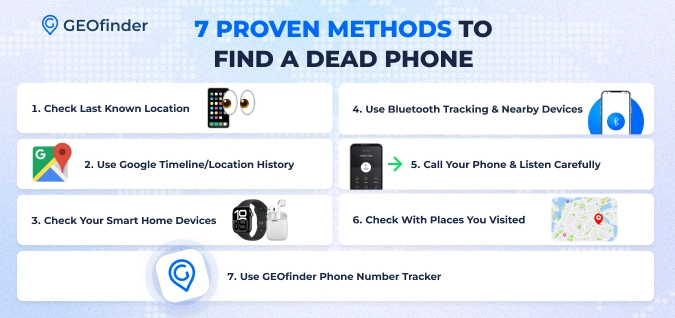
Interested in how to find a lost phone that is dead? Before diving into the list, remember this: start with the most reliable options and work your way down. Jumping randomly between methods just adds stress. Thus, follow the proven techniques below for the best results.
Method 1: Check Last Known Location (iPhone & Android)
It is the most reliable method that many users turn to when necessary.
How to find a dead phone for iPhone users?
- Open the Find My app using another Apple device or log in to your iCloud (with Apple ID and password).
- Sign in with your Apple ID, select your device, and you’ll see the last known location along with a timestamp.
Note: You can use this method to find a phone with a dead battery only if Find My iPhone was enabled before the phone died.
How to find a dead phone for Android users?
- Go to android.com/find in any browser.
- Sign in with the Google account linked to your phone, and you’ll see the last recorded location and time.
As with the Find My app, this depends on Find My Device being enabled beforehand.
Method 2: Use Google Timeline/Location History
If you use Google Maps, this method is great for retracing your steps and finding a dead phone.
How to find a phone that is dead using Google Maps Timeline?
- Open Google Maps Timeline and review your movement history for the day you lost your phone.

- You’ll see where you stopped, how long you stayed, and where your phone likely powered down.
Keep in mind that this method works only if Location History was enabled on your Google account before the phone died.
Privacy note: Google Timeline stores this data because you previously allowed location tracking in your account settings. You’re always in control. You can pause, delete, or manage your location history at any time. While privacy is important, this information can be invaluable when you’re trying to recover a missing phone.
Method 3: Check Your Smart Home Devices
How to find an iPhone without Find My iPhone? Start by checking any smart home systems your phone usually connects to. In the Amazon Alexa app, open Device History to see when your phone last appeared. In Google Home, open the list of connected devices and check recent activity. If you use SmartThings or another smart hub, see when your phone was last logged in to your home WiFi. These tools can help you pinpoint the moment your phone dropped off the network.
If you have security cameras, review the footage from around that time. You might spot when you walked in or when your phone was last in your hand.
All of this helps you narrow down where to find phone with dead battery, especially when it’s nearby.
Method 4: Use Bluetooth Tracking & Nearby Devices
How to find your phone when it’s dead using this method? If you’ve attached a Bluetooth tracker like an AirTag or Tile, open its app immediately. These trackers can help you pinpoint your phone’s location, even if the battery is low or recently died.
How to find a lost iPhone that is turned off? Apple users can rely on the Find My network, which uses nearby Apple devices to receive a secure signal from their phone. On iPhone 11 and newer models, this can still work even after the phone is turned off, thanks to Power Reserve mode. Samsung users can rely on the SmartThings Find network, which operates in a similar crowd-sourced manner.
This only works if your phone is close to other devices. If it’s in an isolated area, the signal may not be received.
Note: iPhone 15 and later models can be found for up to 24 hours after powering off using the Find My network. That’s a big help when trying to find a dead phone.
Method 5: Call Your Phone & Listen Carefully
This method is basic, but it can work surprisingly well if your phone died very recently. When a phone is critically low on battery, it often gives one last vibration or short sound before entirely shutting down. How to find your phone when it’s dead? Try calling your phone several times while keeping the room as quiet as possible. Turn off background noise, pause, and really listen.
It helps to ask someone else to call while you search, so you can move around freely without missing the sound. Check common hiding spots, such as under couch cushions, inside bags, jacket pockets, and car seats. Phones often slip into places you don’t expect.
Call more than once. Even a brief buzz can be enough to pinpoint where it is.
Reality check: This only works if the phone is nearby and has run out of power recently. Still, because it takes just a few minutes, it’s always worth trying when you’re looking for a phone that’s dead.
Method 6: Check With Places You Visited
Start by reviewing your day. Check your calendar, photos, or recent messages to remind yourself where you’ve been. Then reach out to places you visited, such as restaurants, stores, offices, the gym, or a friend’s house. Many places set aside lost items, even if they haven’t contacted you yet.
Don’t forget about transportation. Uber, Lyft, taxis, and public transit usually have lost-and-found systems, and reporting the phone early increases your chances of getting it back.
Pro tip: Use GEOfinder to check your last known location and timestamp, then focus on places you were around that time. It helps you narrow down your search and avoid feeling overwhelmed while trying to find dead phone devices.
Method 7: Use GEOfinder Phone Number Tracker
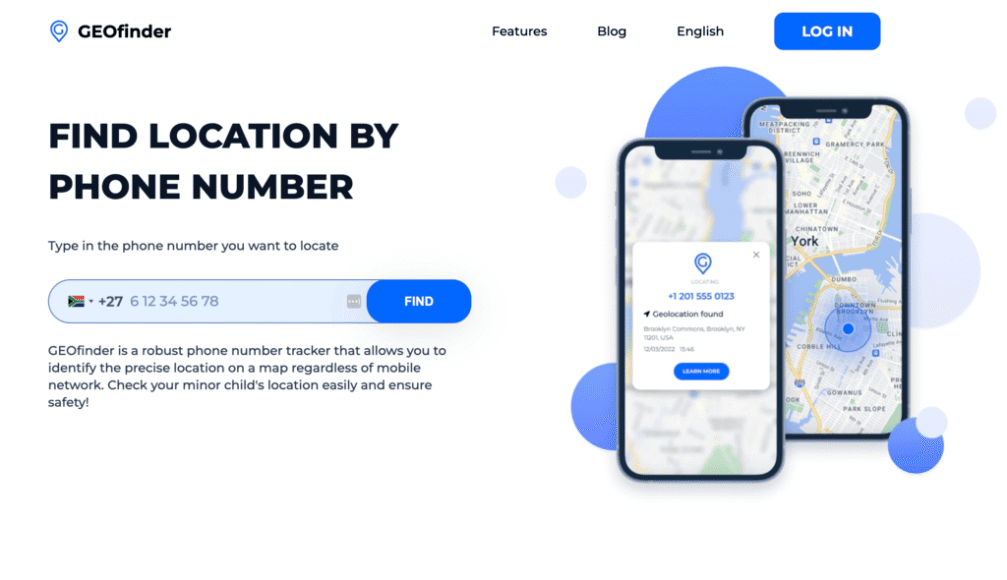
It is the hope method–the one that works after recovery attempts fail. GEOfinder doesn’t promise the impossible. Instead, it helps when someone finds your phone, charges it, and turns it back on.
How to find your phone when it’s dead with GEOfinder? Enter your phone number on the phone number tracker, customize a message, and send a tracking link. Once the phone powers on and connects to a network, you receive its location.
This method is best if you’re hoping a good Samaritan will pick up your phone and plug it in.
Moreover, if you want to know how to track someone’s location on iPhone or Android, using this tool will also be handy as it operates anonymously and works without the necessity of its installation on the target smartphone. Also, it offers 1$ trial for such situations.
Important: This method only works after the phone is powered back on and connected to the internet.
How to Find a Dead Android Phone: Platform-Specific Tips
Android users have several extra tools that can help, depending on brand and settings. How to find a phone that is dead if you are an Android user?
Using Google Find My Device When Phone Is Dead
You can use Google Find My Device to see the last known location, lock your phone, or leave a message. How to find a dead Android phone using Google Find My?
- Go to www.google.com/android/find or use the app on another device.
- Sign in with the Google account linked to your lost phone.
- The map will show the last recorded location before the battery died.
Even if the phone is off, you can still secure the device: lock it and display a message for anyone who finds it.
Newer Pixels (such as the Pixel 8) support Offline Finding, which allows other Android devices to detect your phone’s Bluetooth signal for a few hours after it powers off.
Before your phone dies, do the following (otherwise, this find my lost phone method will not work):
- Enable Find My Device: “Settings”, “Security & privacy”, “Find My Device”.
- Enable Location: “Settings”, “Location”, “Use Location”.
- Turn on Offline Finding (for newer Pixels): “Settings”, “Google”, “Find Hub”, “Find your offline devices”. Select “With network everywhere” for best results.
Google Find My Device is the primary tool for locating a lost Android phone using official, safe methods. Always ensure it’s set up before trouble arises.
Samsung Find My Mobile Features
How to find a phone that is dead using Samsung Find My Mobile features? Samsung phones offer several tools to help you find a dead phone, even when it’s offline. Using Find My Mobile, you can track mobile phones, tablets, and some wearables, such as the Galaxy Watch or Buds, that are linked to your Samsung account. Even if your device is offline, SmartThings Find uses nearby Samsung devices to securely report its location.
With Find My Mobile, you can also ring your phone, lock it remotely, and protect data lost phone. You can access all your registered devices from the website or the SmartThings Find app. Keep in mind that an internet connection is needed for most features, and the Find My Mobile setting must be enabled in “Settings”, “Biometrics and Security”, and “Find My Mobile”.
This makes Samsung’s system a reliable way to find dead phone while keeping your data safe.
Third-Party Apps That Help Find Dead Android Phones
When it comes to finding a dead Android phone, the most reliable external solution is GEOfinder. Unlike apps that promise impossible real-time tracking, GEOfinder works realistically by helping you locate your phone after it powers back on (however, it cannot track lost phone without SIM card). You simply enter your phone number at GEOfinder and customize a message. Once the lost phone is charged and connected to a network, you’ll receive its location.
How to Find a Dead iPhone: iOS-Specific Solutions
Apple’s ecosystem excels in tracking lost devices, making it one of the easiest ways to learn how to find a dead iPhone.
Find My iPhone With a Dead Battery
How to find a phone that is dead using Find My iPhone? Apple’s Find My iPhone helps you locate a phone even if the battery is dead. It shows the last known location before the phone powered off and, on newer iPhones, supports offline finding; nearby Apple devices can detect your phone and update its location securely. You can also lock the phone, display a message, or play a sound once it powers back on.
To ensure this works, enable Find My iPhone in “Settings”, “[Your Name]”, “Find My”, “Find My iPhone”, and turn on “Offline Finding”.
Using Other Apple Devices to Locate a Dead iPhone
How to find a dead iPhone using other Apple devices? If you have an iPad, Mac, or Apple Watch, you can use it to access Find My instantly. This lets you check your iPhone’s last known location or enable offline finding immediately, improving your chances of recovery. You can also lock the device, display a message, or play a sound once it powers back on. Using other Apple devices is especially helpful if your iPhone is lost nearby or in a public place.
Finding Your Dead Phone at Home vs. Outside
Your strategy changes depending on where the phone is likely located. Knowing how to find phone when dead at home is different from searching outside.
If Your Dead Phone Is in Your House
Focus on sound-based search, Bluetooth trackers, and room-by-room movement retracing. Check unusual places: laundry baskets, sofas, fridge shelves, or between couch cushions. Phones are usually closer than you think.
If You Lost Your Dead Phone Outside
Rely on the last known location, Google Timeline, and contacting places you visited. This is where knowing how to locate a lost cell phone turned off becomes a process, not a single action.
What to Do If You Can’t Find Your Dead Phone
Sometimes recovery doesn’t happen. If that’s the case, act quickly to protect yourself. How to find phone when dead and none of the methods help?
Immediate Security Actions
Log in to your account to remotely lock or erase the device. Change important passwords and review account access. It helps protect data before it becomes a bigger problem.
Contact Your Carrier
Your carrier can suspend service, block the SIM, and help with IMEI reporting. It prevents unauthorized use and may assist with recovery through official channels.
Insurance and Replacement Options
If you have phone insurance or device protection, file a claim as soon as possible. Document everything: timestamps, last locations, and actions taken.
How to Prevent Losing Your Phone Again
Once this crisis is over, prevention becomes your best friend.
Essential Settings to Enable NOW
Turn on “Find My Device” or “Find My iPhone”, enable location history, and keep offline finding active. These settings are the key to finding a dead phone next time.
Physical Prevention Tips
Use cases with card holders, attach Bluetooth trackers, and create habits like checking your phone before leaving places. Small actions make a big difference.
Digital Habits to Develop
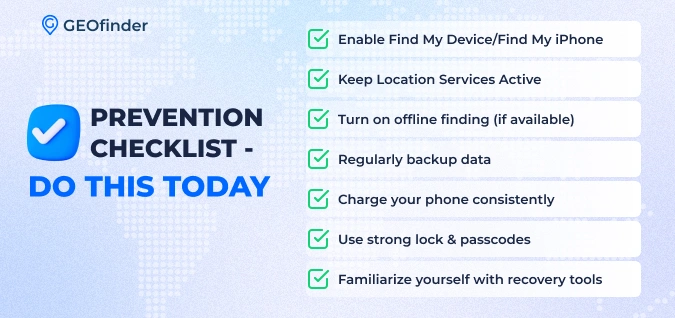
- Enable Find My Device/Find My iPhone: Always turn on tracking features for quick recovery.
- Keep Location Services Active: Let your phone record its position to provide the last known location.
- Turn on offline finding (if available): Useful for newer devices that can be detected even when powered off.
- Regularly backup data: Protect important files, photos, and contacts in case your phone is lost.
Charge your phone consistently: Avoid dead batteries during critical times. - Use strong lock & passcodes: Secure your phone to prevent unauthorized access.
- Familiarize yourself with recovery tools: Know how to use GEOfinder and official tracking apps.
Advanced: Using IMEI to Track a Dead Phone
It is a more technical approach, but it has limitations.
- IMEI tracking works only through official channels. Law enforcement and carriers can use it, but regular users can’t track in real time.
- It helps with blocking, not locating. IMEI reporting helps prevent misuse but won’t reveal a live location.
- Use it as a last resort. It’s useful for security, not for quickly finding your phone.
Common Mistakes When Trying to Find a Dead Phone
One of the biggest mistakes is chasing apps that promise live tracking for a completely powered-off phone because they don’t work. Another is waiting too long to check your phone’s last known location, which can complicate recovery. And don’t jump to the worst-case scenario: most lost phones aren’t stolen, they’re just misplaced nearby. Staying calm, quickly checking the last known location, and using reliable tools like GEOfinder or Find My Device will give you the best chance of finding your phone.
Conclusion
Losing a phone with a dead battery can feel alarming, but it’s far from hopeless. Begin by checking the last known location, then search methodically and retrace your steps. Most dead phones are simply misplaced nearby, not stolen.
Understanding how to find phone when dead is key. Prevention makes a big difference. Enable tracking now with Find My Device or Find My iPhone, and build habits that reduce future risk. GEOfinder is a helpful backup for phone number tracking, working once the phone is powered back on.
Stay calm and follow a clear plan during your search. Remember: the best time to enable Find My Device was when you first got your phone. The second-best time is right now. Acting quickly and systematically maximizes your chances of recovering your phone safely.



Comments